


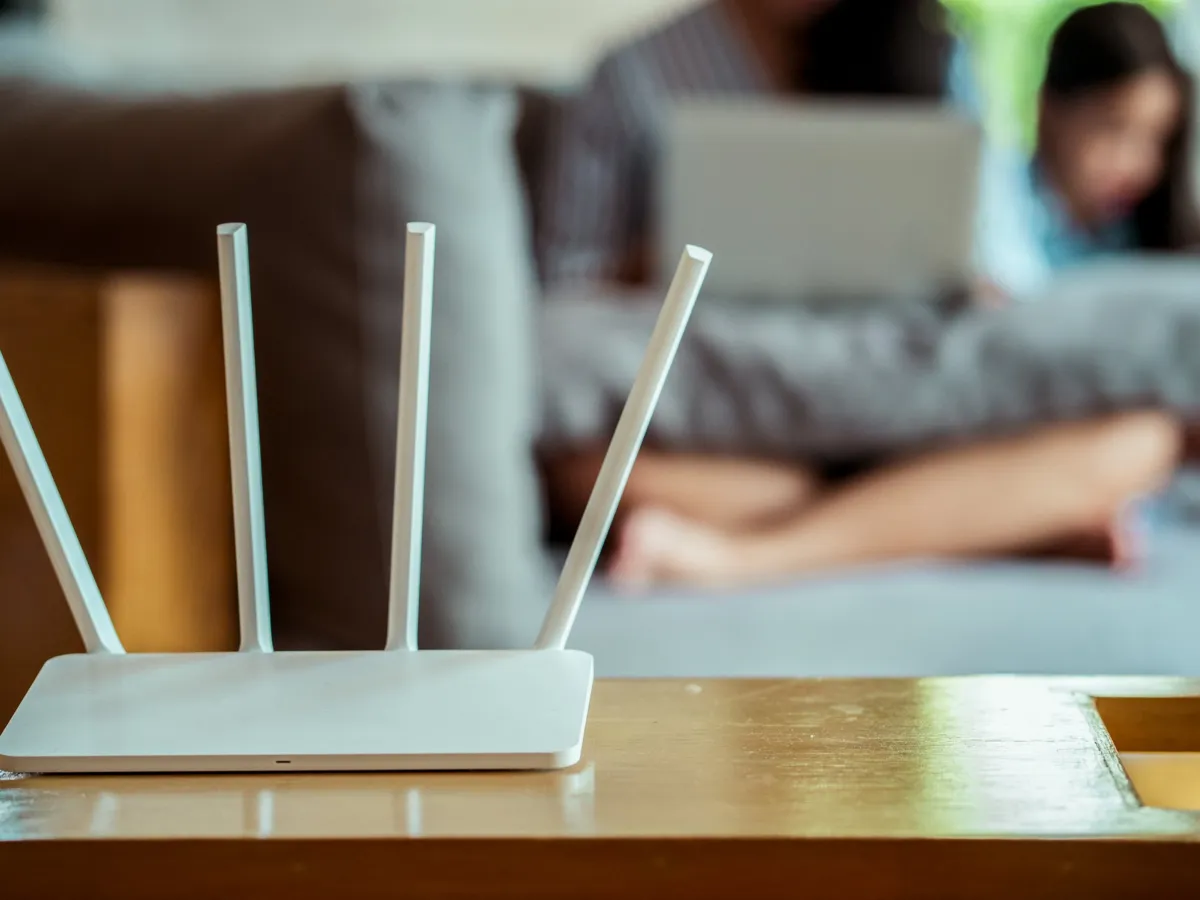
The short answer: don’t just toss them. Old routers do save some information, like your Wi-Fi password, and that information stays even after you unplug them. Modems save much less. Either way, a quick reset wipes your personal settings, and then the device should be returned, reused or recycled. It shouldn’t go in the trash.
Here’s how to figure out what you have, how much you actually need to worry, and what to do with it.
Step 1: Figure out what you have
“Router” and “modem” get mixed up a lot, and some boxes are both. What you have changes what’s stored on it and whether you’re allowed to get rid of it.
- Modem: the cable, phone or fiber line from outside plugs into it, and it usually doesn’t make Wi-Fi. It stores very little about you. Many are rented from your internet company.
- Router: plugs into the modem and creates your Wi-Fi network, and often has antennas. It stores your Wi-Fi password, its login and your settings.
- Gateway: a modem and router in one box. The outside line plugs in and it makes Wi-Fi, so it stores the same things a router does. Most are rented.
- Mesh system: two or three matching units that you set up with a phone app. They store the same things a router does, plus a link to your app account. Most people own theirs.
Not sure if it’s rented? Look at your internet bill for an “equipment” or “modem rental” charge, and check the device for your internet company’s logo or sticker.
Is it still supported? Manufacturers send routers updates to their built-in software, called firmware, which fix security problems. When the updates stop, the router stops getting safer. If yours hasn’t had an update in years, or it’s an older Wi-Fi 4 (802.11n) model, it’s past its prime.
Step 2: How risky is an old router?
Less risky than you might fear. A router doesn’t store your photos, documents, texts or saved passwords from your phone. Here’s what it does keep, from most to least important.
Worth protecting:
- Your Wi-Fi password. Anyone who has it can join your network if they’re close enough. That matters most if you use the same password for anything else, like email.
- Your internet account login. Some internet services, mostly DSL and some fiber, give you a username and password that the router saves.
- Remote-access or VPN settings, if you ever set any up.
Minor:
- The router’s admin password and your network settings.
- A list of devices that have connected, with names like “Jordan’s iPhone.”
Barely anything:
- Browsing history. Most home routers don’t save the websites you visit. Any activity logs they keep usually disappear when the power goes off.
The two bigger risks people miss:
- Keeping an outdated router in use. A router that no longer gets security updates is a much bigger danger in your living room than it is in a recycling bin.
- Throwing it in the trash. Routers and modems contain lead and other materials that don’t belong in a landfill. Many states and countries don’t allow electronics in household trash, and a rented modem that never gets returned can lead to fees on your bill.
Step 3: What to do: good, better, best
Pick the level that fits how careful you want to be. For most people, “good” is enough. The other two add a few more minutes for extra peace of mind.
Good: Reset it (about 5 minutes)
Unplug any USB drive or printer attached to the router. Then, with the router turned on, press and hold its small reset button for 10 to 30 seconds. It’s usually in a tiny hole on the back, so use a straightened paper clip. Let go when the lights flash, and wait for it to restart.
This is called a factory reset. It erases your passwords and settings and puts the router back the way it came out of the box. The exact time to hold the button varies, so check the manual if nothing happens.
Better: Reset it and double-check
Before you reset it, remove the router from any app or online account you used to manage it. This matters most for mesh systems, because the next owner can’t set them up until you do.
After the reset, look at the list of Wi-Fi networks on your phone. The router should now show the default network name printed on its sticker. If your old network name still shows up, the reset didn’t work, so try again. And if you used your Wi-Fi password anywhere else, change it there too.
Best: Leave nothing behind
Before resetting, log in to the router’s settings and change the Wi-Fi password to a random jumble of letters, then save. That way, even if the reset somehow fails, your real password isn’t on it. Delete any remote-access or VPN setups while you’re in there.
If the router won’t turn on, you can’t reset it. Take it to a certified electronics recycler (look for e-Stewards or R2 certification), which handles both the materials and any data left on the device.
Step 4: Where it should go
Once it’s wiped, there are three possibilities, depending on what you have.
Rented from your internet company? Return it. It’s their property, and many companies keep charging you or bill you for the device until it’s returned. Most let you drop it off at a store or mail it back with a free shipping label. Keep the receipt until the return shows up on your bill.
Still works and still gets updates? Reuse it or pass it on. An old router can boost Wi-Fi in a far-off room, run a separate network just for smart-home gadgets, or sit in a drawer as a backup. You can also sell it or give it to a friend. Just reset it first.
Too old or broken? Recycle it. In the US, stores like Best Buy and Staples accept routers and modems for recycling, often for free. Many cities and counties also hold electronics drop-off days. For more ways to cut down on tech trash, see our tips for reducing e-waste.
Setting up the replacement? Our guide to creating a smart home network walks through it.
Common questions
Do routers store your browsing history?
Not really. Most home routers pass your internet traffic along without saving the websites you visit. Some keep short activity logs, especially ones with parental controls, but those usually disappear when the router is unplugged. A factory reset clears anything that’s left.
Is a factory reset enough, or should I smash it?
A reset is enough for a home router. Smashing it doesn’t protect you any more than a reset does, and it makes the device harder to recycle. The worst realistic case is someone learning your old Wi-Fi password, so if you used it anywhere else, change it there.
What if my old router won't turn on?
Then you can’t reset it, but it’s also hard for anyone else to get anything off it. Drop it at a certified electronics recycler, and change your old Wi-Fi password anywhere you reused it.
Can I just put a router or modem in the trash?
You shouldn’t, and in many places it’s against the rules. Electronics contain lead and other harmful materials, which is why many US states and most of Europe restrict tossing them in household trash. Store take-back programs and local e-waste drop-offs are usually free.
Do I have to return my internet company's modem?
If you rent it, yes. Check your bill for an equipment or rental charge. If you see one, the modem belongs to the internet company, and you’ll usually be charged until you return it.
The bottom line
Old routers and modems hold a little personal information, mostly your Wi-Fi password, but a five-minute reset wipes it. Figure out whether you own it or rent it. Reset it, return it if it’s rented, and reuse or recycle it if it’s yours. The one place it shouldn’t end up is the trash.


